Getting Started with PostgreSQL in the Terminal: Complete Setup Guide
In the previous article on How to install PostgreSQL we went through the step by step process of downloading and installing PostgreSQL and pgAdmin. In this article, I will be showing you how you can setup your environment and use posgreSQL in the terminal.
Step 1: Try Running psql in the commandline or terminal
Open your terminal and type the command
shellpsql -U postgres
if the results shows like this output below , then you need to follow the steps below to set up your environment variable
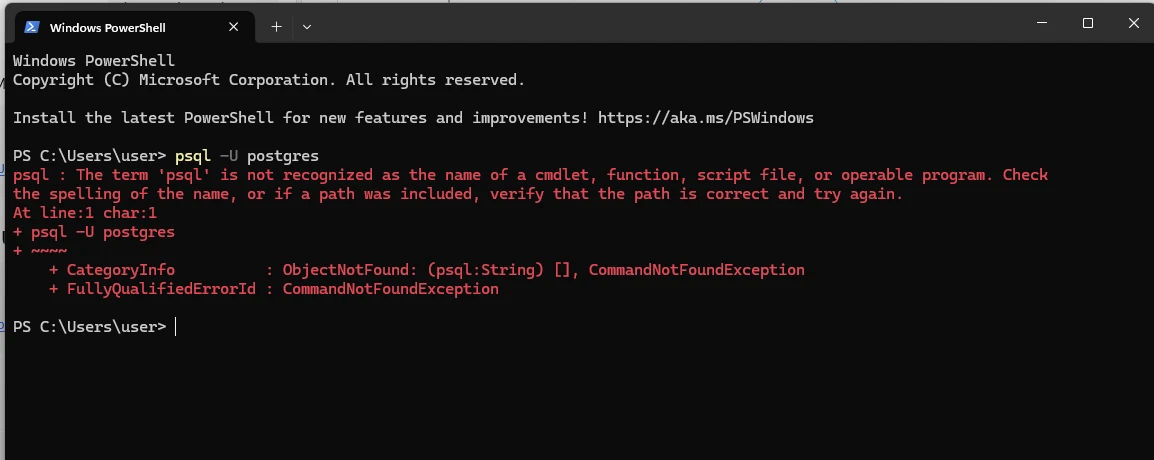
The error above is simply telling you that environment variable for postgres has not been set so the system cant find an executable file from which to run the psql command.
what we have to do is to set it up manually
step 2: find the folder where postgres has been installed
-
First open file explorer
-
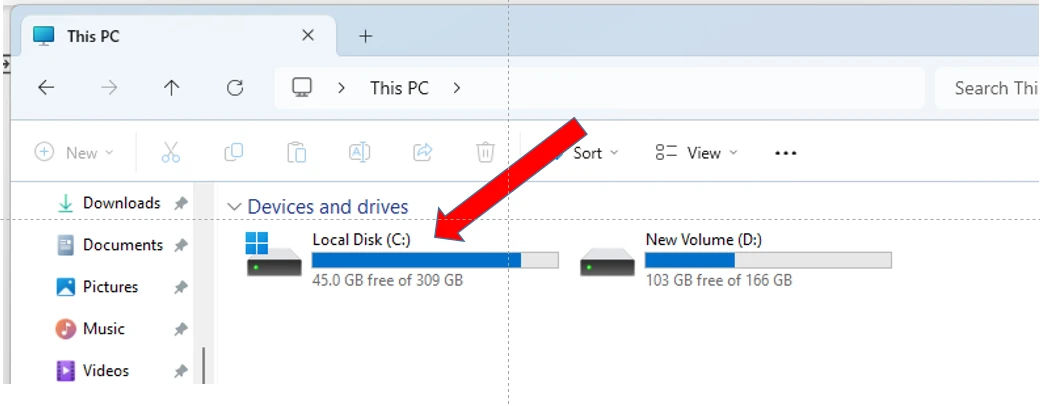
go to This PC
-
Click on Local Disk (C:)
-
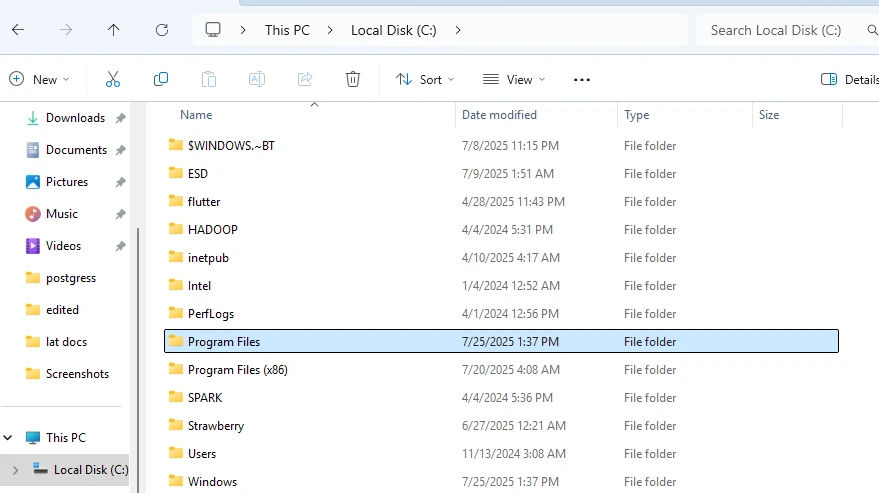
In Local Disk (C:) select and click on Program Files
-
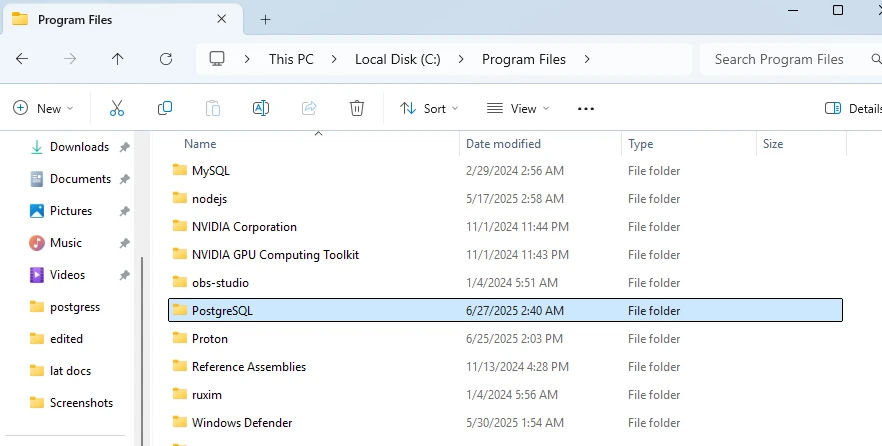
In the program files folder, scroll down and search for PostgreSQL. double click to open it
-
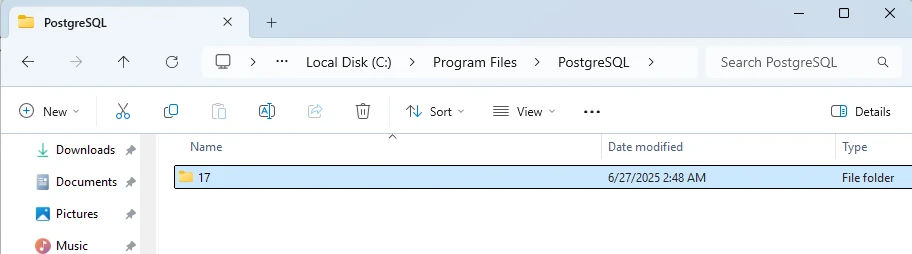
In the PostgreSQL folder, you will see another folder 17 which is the version of postgress you have installed it can be 15 or even 16 depenting on your version. click and open the folder
-
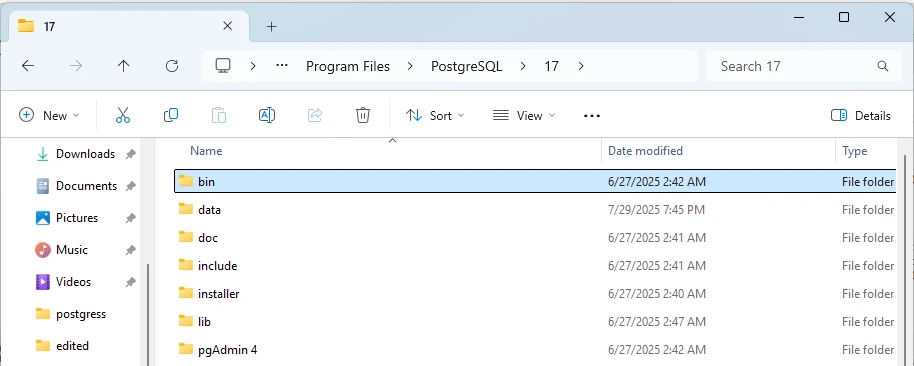
Now in the folder, you will see a list of folders with the first called bin. click on the bin folder
-
Now in the bin folder , you will see a list of system files. above in the bar showing the file path, click there and copy the path.
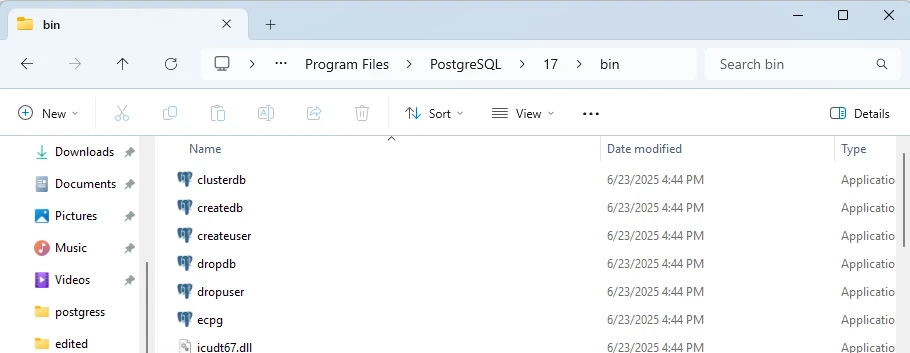
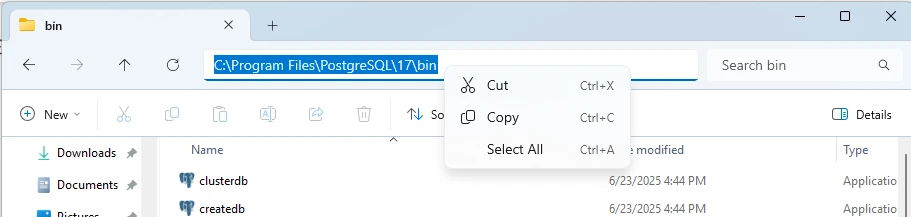
The file path looks something like this
C:\Program Files\PostgreSQL\17\bin
step 3: Set the environment Variable for postgres
-
Got to the search bar in the start menu
-
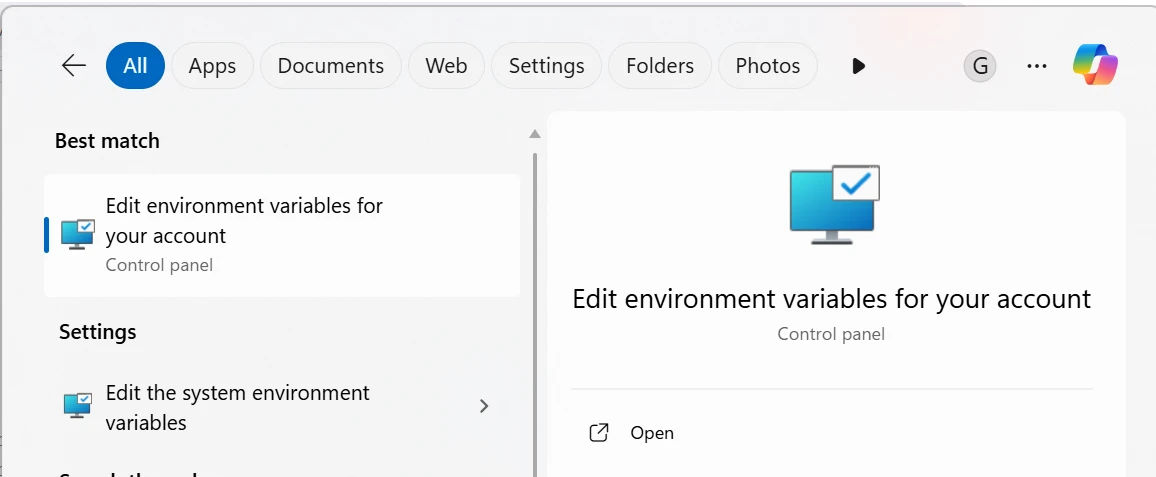
search for the term "Edit environment variables".

-
once you type in the Edit environmanet variables in the start search bar as above, then you will see an option on the start menu as shown below. Click on the app option which says " Edit environment variables " . see in picture below.
-
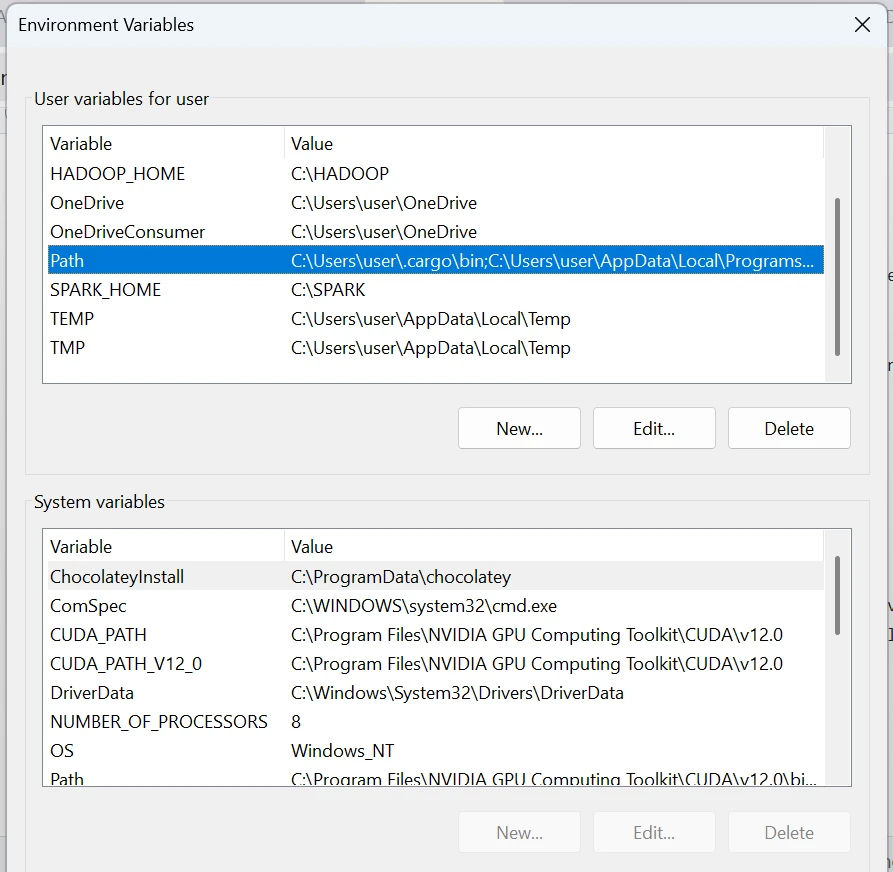
Under the first section which says "User variable for user" scroll down and select the path variable. then click on Edit. This will take you to the "Edit environmet variable window" where you can set your path.
-
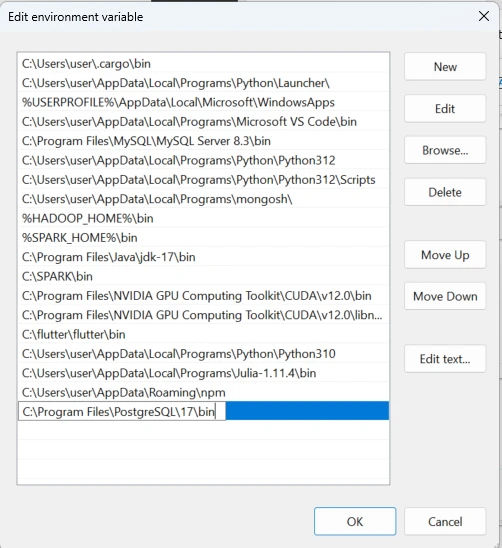
in the Edit environment variable pannel below, Click on New . paste the copied installation file path which we copied above into the blue cell
-
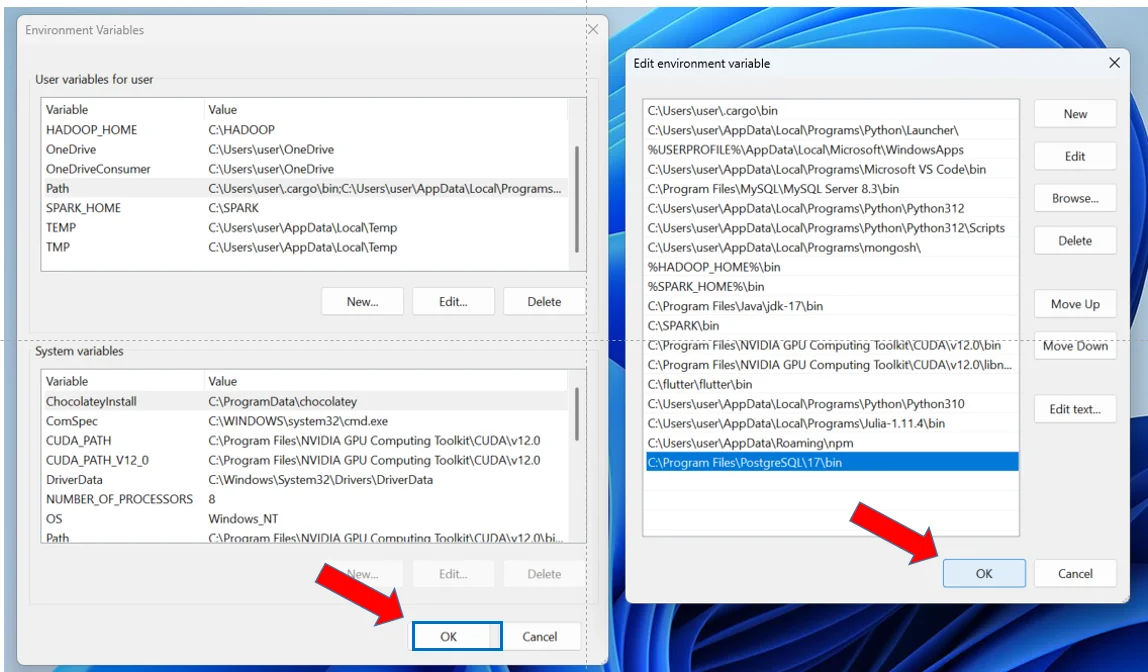
click on okay when finished on both environment pannels
step 4 : Open new terminal and run the psql command again
shellpsql -U postgres
Enter password if prompted for user password
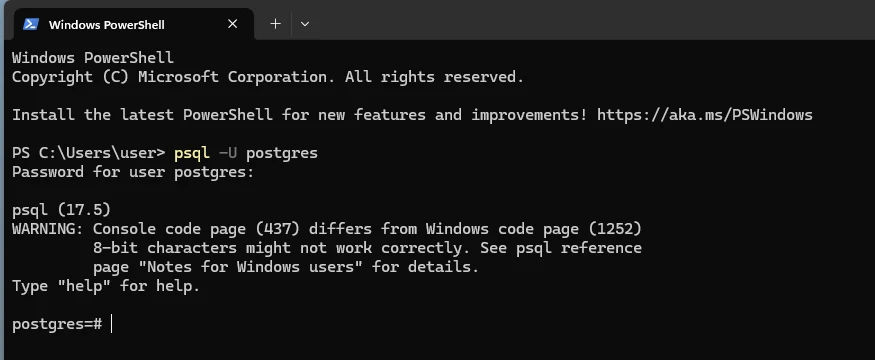
Yuppiii Congratulations 🎉 . You’ve successfully configured PostgreSQL to work in your terminal. You can now run SQL commands directly using psql.
💡 What You Learned in This Article
By completing this tutorial, you learned how to:
- Identify PATH configuration errors: Understand why Windows shows
'psql' is not recognizedwhen trying to run PostgreSQL commands. - Locate PostgreSQL binaries: Navigate to the
bindirectory (C:\Program Files\PostgreSQL\<version>\bin) wherepsqland other CLI tools reside. - Configure Environment Variables: Add custom installation paths to your Windows User
Pathvariables. - Verify CLI Connectivity: Launch and authenticate into the PostgreSQL interactive terminal directly from your command line using
psql -U postgres.
What's Next?
Now that your terminal environment is set up, you are ready to start working with databases directly from the command line.
👉 Next Step: How to Create a Database in PostgreSQL